How to use Tkay
From one idea to a change you can keep. Screens below are from the current iPhone build.



Step 1
Get started
Tkay is in private testing on iPhone. Ask for an invite and we’ll send you instructions to install it. Android is on the way.
The first time you open Tkay, a short setup walks you through:
- What you want to get better at. Pick the closest; you can change it later.
- Create your account with Sign in with Apple. Your answers so far are kept, and your workspace is private to you.
- What you’re working on. Name one project, its goal, how you’ll know it got better, and paste your current version (a checklist, plan or notes). Tkay keeps that version and never changes it.
- What Tkay will and won’t do. Read the boundaries and agree before anything is processed.
- Your first takeaway. Paste something you learned recently, or try a labeled sample.
You can go back at any step.
Step 2
Capture an idea
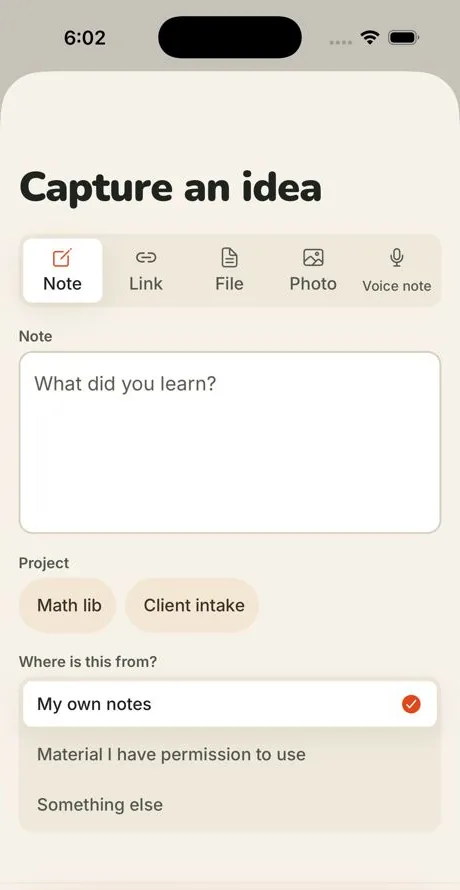
Tap Capture an idea on Home and choose how to add it:
- Note: type what you learned.
- Link: paste a web address.
- File or Photo: pick a document, take a photo or choose one from your library.
- Voice note: recording only starts when you tap, and stops when you tap again.
Pick the project it’s for, say where it’s from, and save. Captures are saved on your phone first, encrypted, and sent when you’re online, so nothing is lost if you lose signal.
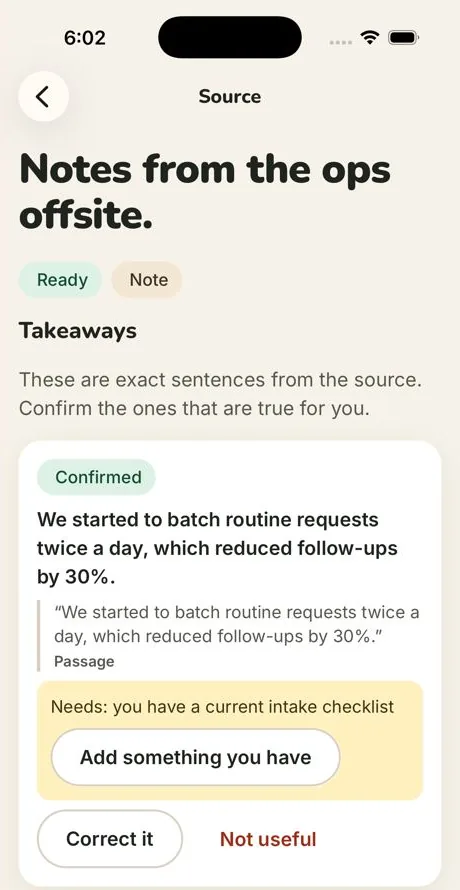
Tkay then pulls out takeaways: exact sentences from what you added. Confirm the ones that are true for you, correct them, or mark them not useful.
Permissions: Tkay asks for the camera, photos or microphone only when you use them. If you say no, there’s always another way, such as typing a note.
Step 3
Connect it to a project
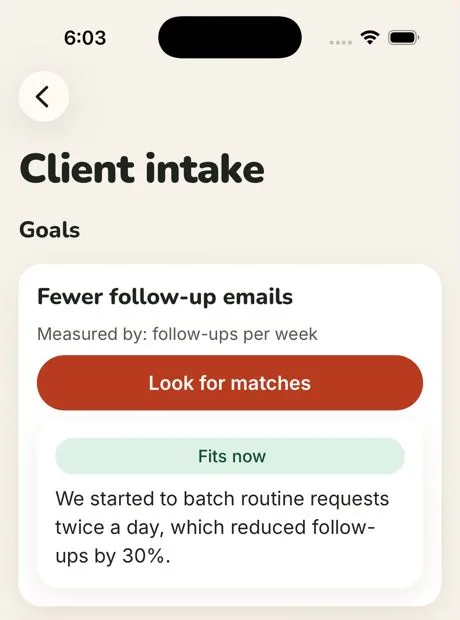
Open a project and tap Look for matches under a goal. Scout finds the takeaways that fit and marks each one, for example Fits now.
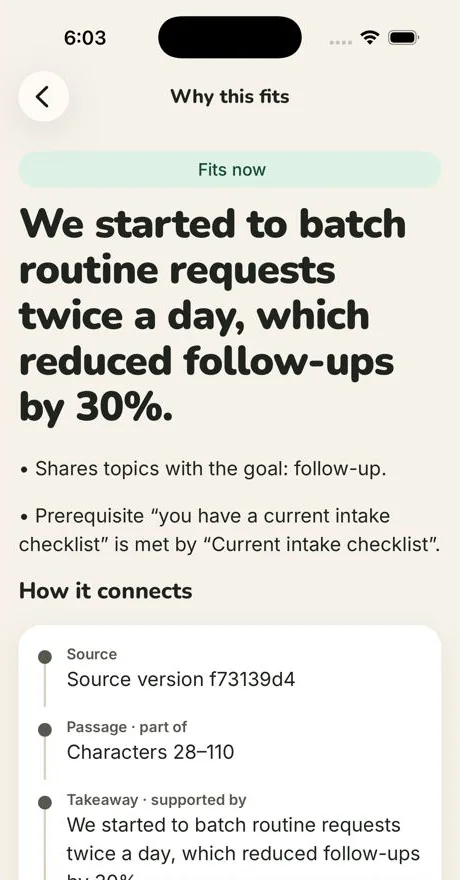
Tap a match to see Why this fits: the topics it shares with your goal, the prerequisites it needs and what you already have, and a trail back to the exact passage it came from.
You can also add Rules to keep (things every draft must respect) and What you already have, so matches account for them.
Step 4
Approve a try
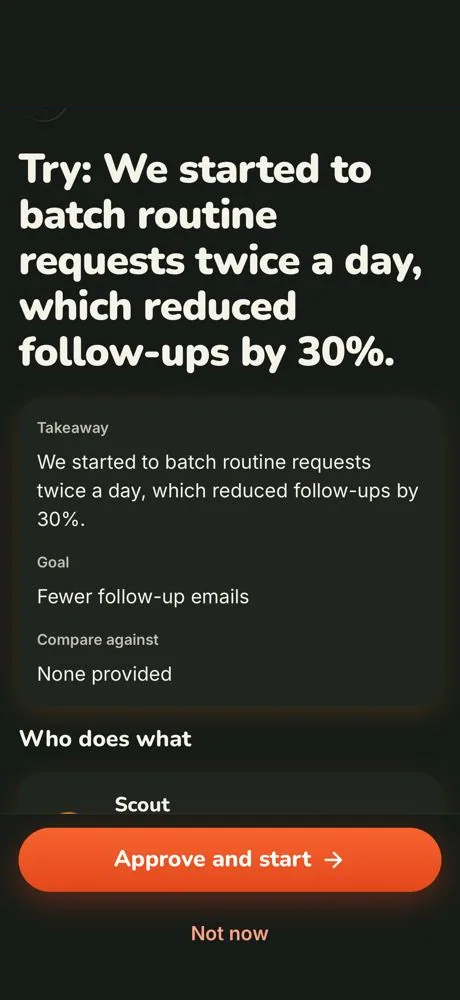
Tap Plan a try. The plan shows the takeaway, the goal, what it’s compared against, and who does what:
- Scout finds the connection.
- Maker makes the first draft.
- Checker checks what changed against your current version.
It also shows the spending limit, whether AI will write the draft, what the try is allowed to do, and an estimate in credits. Nothing runs until you tap Approve and start. If the plan changes, you’re asked to review it again.
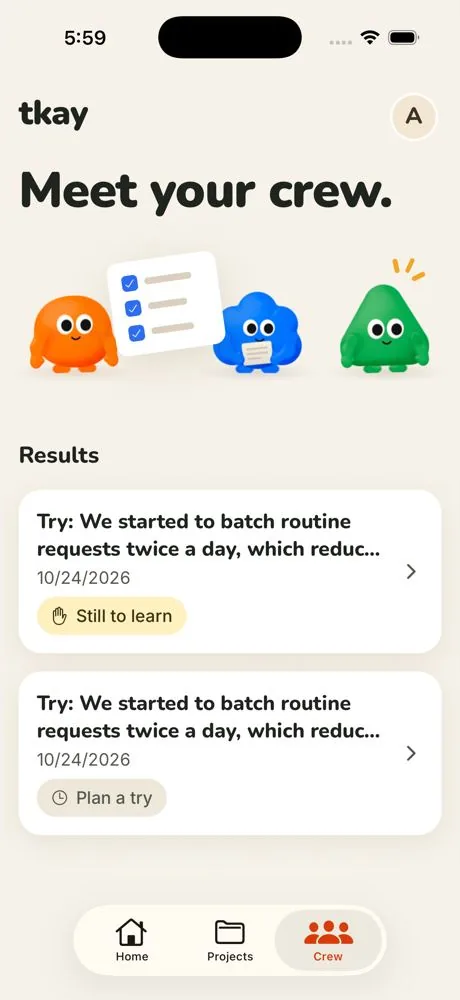
While it runs, the Crew tab shows each try’s progress and anything that needs you.
Step 5
Review the result
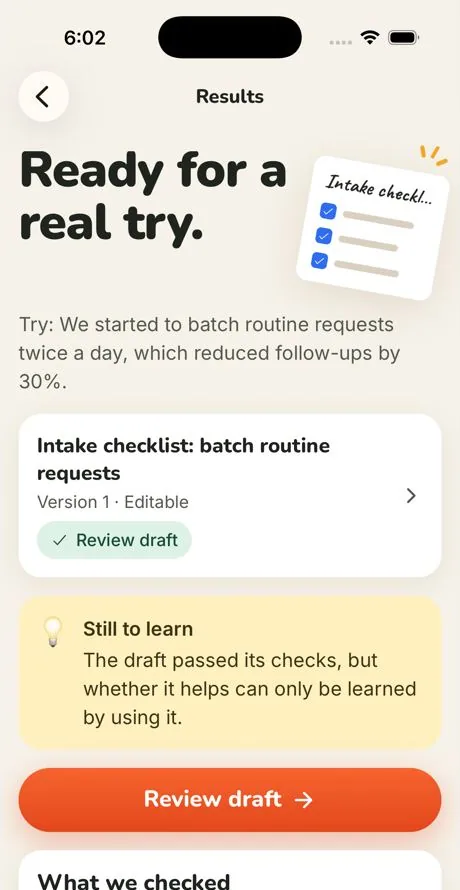
When a try finishes, the result tells you what was made, what Checker checked, and what is still to learn, because some things can only be learned by using them.
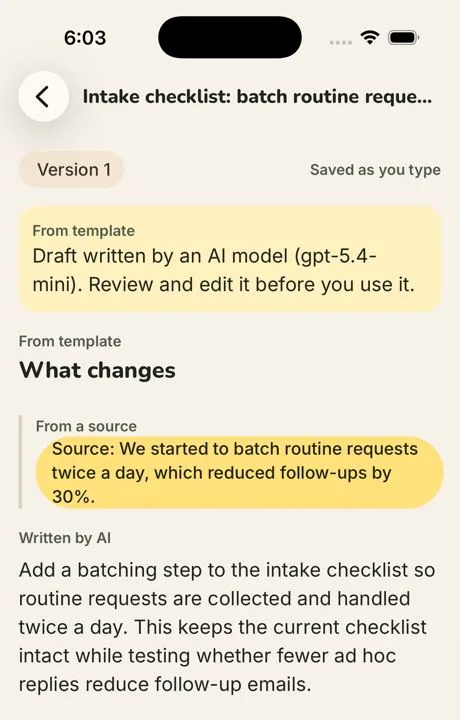
Open the draft to edit it. Every part is labeled with where it came from: From your version, From a source, Written by AI or Your edit. Changes save as you type, and Save as new version keeps the history.
Export a draft as Markdown, PDF, Word, CSV or Excel. If a draft is harmful or wrong in a way that worries you, tap Report this draft.
Step 6
Keep it, then follow up
On the result, answer What will you do?: Use it, change it first, decide later, don’t use it, or ask for more evidence. When you use it, Tkay marks it as yours.
After you’ve used it for a while, come back and answer How did it go? Record what you counted, the number, and how you know (your estimate, a count, or a report). Follow-ups are added next to the original result, never over it.
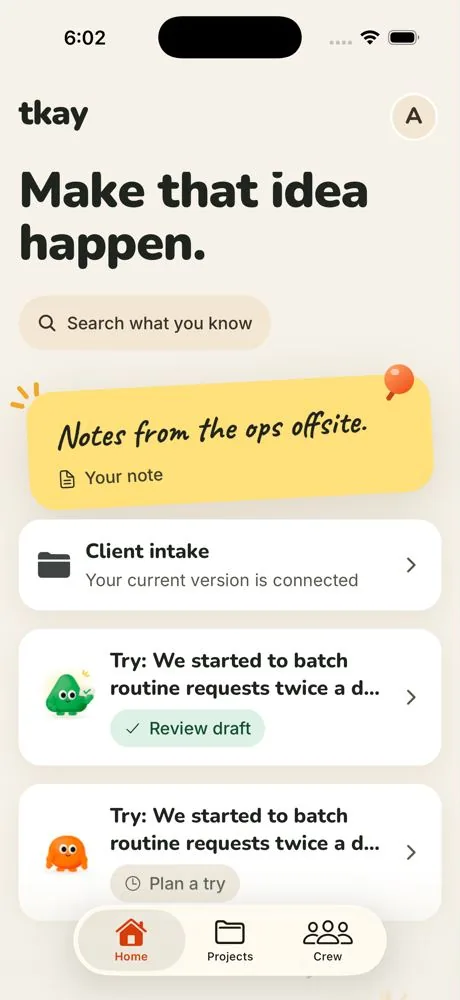
To find something later, tap Search what you know on Home. It searches your projects, sources, takeaways and tries.
For developers
Try an idea on your code
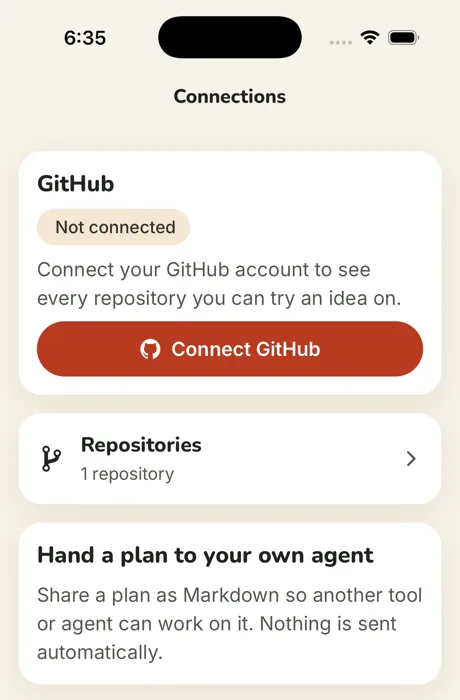
- Go to Account → Connections and tap Connect GitHub. You’ll see the repositories where the Tkay GitHub App is installed and that your GitHub account can access.
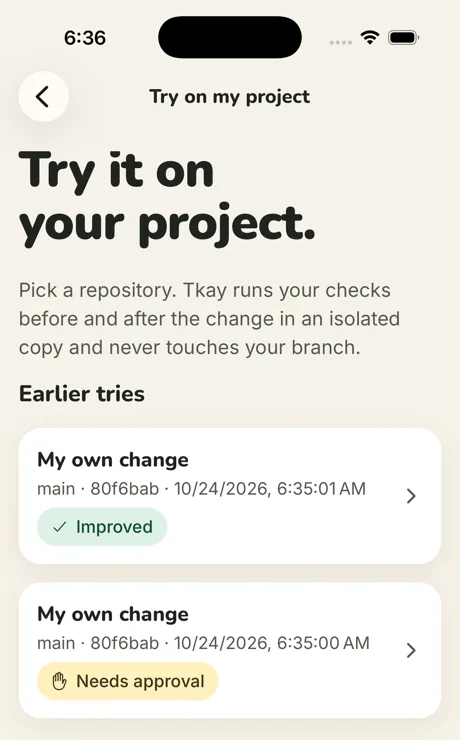
- From a plan or a result, choose Try this on my project and pick a repository and the branch to start from.
- Choose the change: an AI-written change, your own change (paste a diff), or just check the baseline. Set a spending limit and whether the network is off or allowed only while dependencies install.
- Review the plan and tap Approve and run. Tkay runs your checks before and after the change in an isolated copy of that exact revision.
- See whether it helped, with the test results, the diff and the cost. Export the patch, or approve a draft pull request separately.
Good to know: Tkay never pushes to your branch, merges or deploys. A draft pull request needs its own approval, and your own GitHub account must be able to push to the repository. Today, tries work on Node.js projects whose checks run with npm.
At a conference
Conference mode
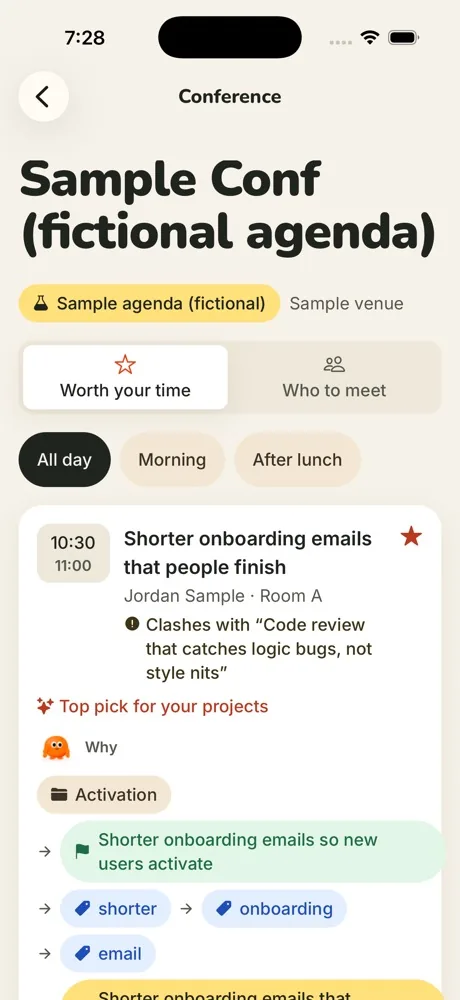
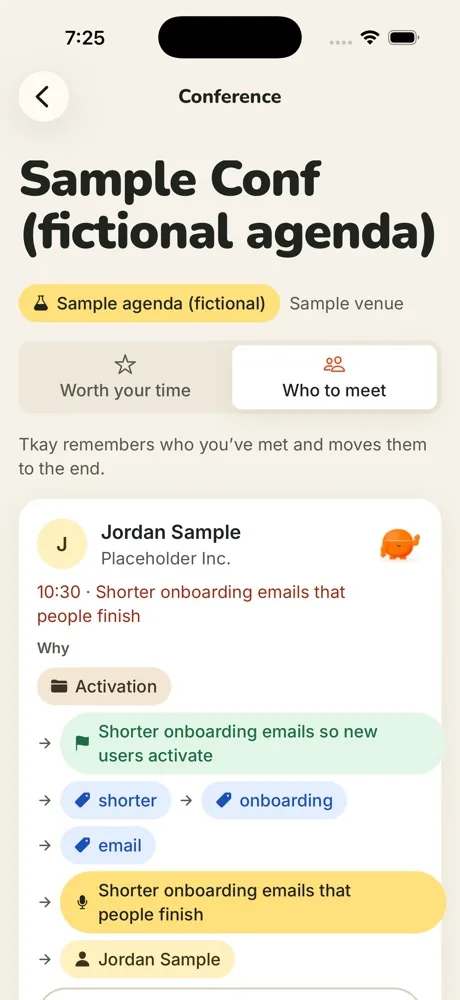
Tap Conference mode on Home to work out which talks are worth your time and who to meet, based on the projects and goals you already have in Tkay.
- Worth your time ranks talks by how they connect to your work. Each pick shows its path: your project, its goal, the topics they share, the talk and the speaker. Talks with no path to your goals are listed under Other talks, unranked and unexplained.
- Filter by Morning or After lunch, and save talks. Two saved talks at the same time get a clash flag.
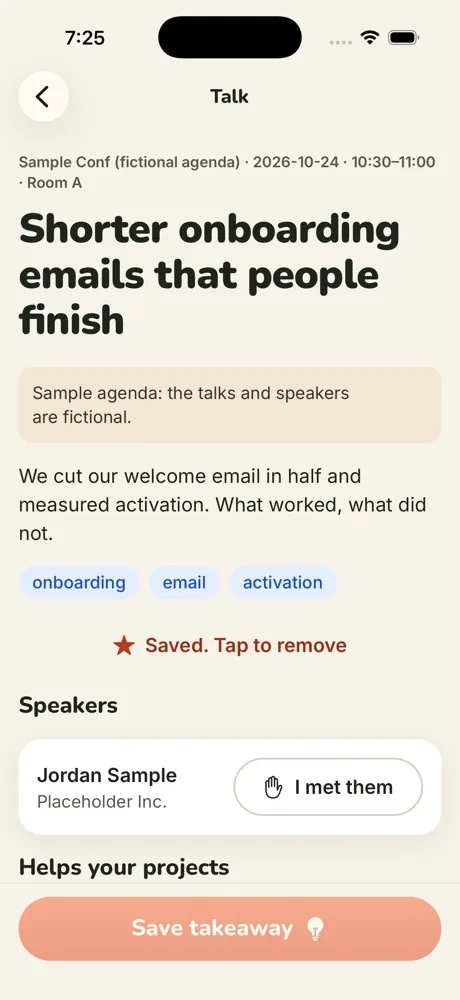
- Open a talk to see which of your projects it helps, then capture a takeaway right there. It goes into your notes like any capture, works offline, and stays linked to the talk.
- Who to meet suggests speakers on the same paths. Tap I met them and they move to the end of the list.
Honest by design: if Tkay can’t reach the graph behind these answers, it says it can’t explain right now instead of guessing. Topics are matched by keywords, so talks worded very differently from your goals may not connect.
At a conference
Bring in an agenda
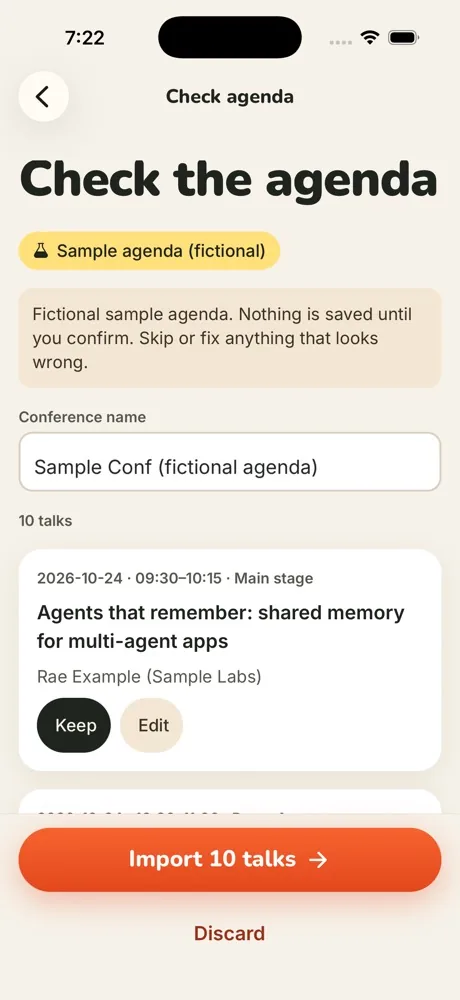
- In Conference mode, tap Import an agenda and paste the link to a public page that lists the talks.
- Tkay’s server fetches the live page and reads out the talks, times and speakers. If the page doesn’t list them in a structured way, its text is sent to OpenAI to pull them out.
- Check the agenda before anything is saved. Warnings flag things like a missing time or speaker; keep or skip each talk and fix titles, times or rooms. Then import.
Every agenda shows where it came from, for example Fetched live with Bright Data or Sample agenda (fictional). To see how it works first, tap Try a sample agenda: its talks and people are made up on purpose.
Good to know: live import has to be switched on for the server you use; if it isn’t, the app says so. Pages that only load their schedule with JavaScript can’t be read yet, and times are shown as the agenda lists them.
Plans and credits
How credits work
Credits pay for the AI and computing a try uses. Before anything runs you approve a maximum, and whatever isn’t used comes straight back. Each plan shows an estimate, such as “about 1 credit, at most 40”.
Every workspace gets free credits each month. See your balance and history in Account → Plans & credits. Paid plans and credit packs will be offered in the app through the App Store and Google Play; prices aren’t final yet.
Your data
Privacy, export and deletion
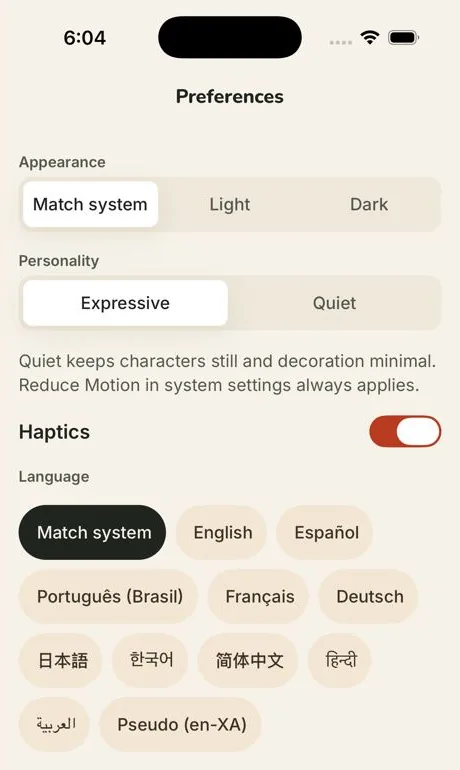
- Make it yours: Account → Preferences sets light or dark appearance, Expressive or Quiet characters, haptics and language. Reduce Motion in your phone’s settings always applies.
- Get a copy: Account → Your data → Export my data.
- Delete everything: Account → Your data → Delete my account. What’s deleted and what’s kept.
- How data is used: read the privacy policy.